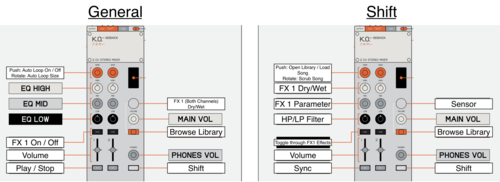
Timeless Stereo TE Sidekick x Djay Mapping
Description and Instructions
EP-136 Sidekick + Algoriddim Djay Custom Mapping & Setup Guide
Setup & Best Practices
Import: Drop the mapping file into your Djay MIDI folder. Open Djay, go to MIDI settings, select the EP-136 device, and choose the Sidekick TS v1.0 configuration.
Update Sidekick Settings: Set your Sidekick to CONTROL mode (Settings > MIDI > CONTROL) and enable USB Multi Audio Output (Settings > USB > MULTI & (Settings > USB > OUT (ON)).
Update Djay Audio Device Settings: Set Djay audio device to EP-136, Mixer Mode: Internal, Main output: EP-136 ch 1-2 and Pre-Cueing: EP-136 ch 3-4.
Auto-Cueing (Frees Up Buttons): There is no dedicated cue button on this map. Instead, go to Djay's Sound settings and enable Pre-Cueing Auto Select. Djay will automatically cue whichever track's volume fader is down, freeing up 2 buttons for other controls.
Shift Layer Safety: I recommend turning on Reset EQ, FX, Tempo in your settings to prevent tracks from carrying over accidental effects or filters into a new mix.
Volume Faders: The volume faders remain active even when holding the shift layer. This is intentional so you can ride volumes while simultaneously accessing secondary controls like filters.
Hope you find this helpful! Let me know what you think or how you customize it. Cheers!